Hideki @hideki@gameliberty.club
Joined Oct 2020
Hideki
boosted

@Loki women don't even know what they want, let alone define who they are.
We men have never had that problem 
Hideki
boosted

Leftist wordplay is so funny, they go to lengths to not saying "women" instead they say "people with a uterus" but have no issue saying "men" 
Hideki
boosted


@LukeAlmighty BTW this instancing trick works with lights too, so you can have arrays of lights easily without having to place them manually
@LukeAlmighty @applejack it's looks LIT mang! 
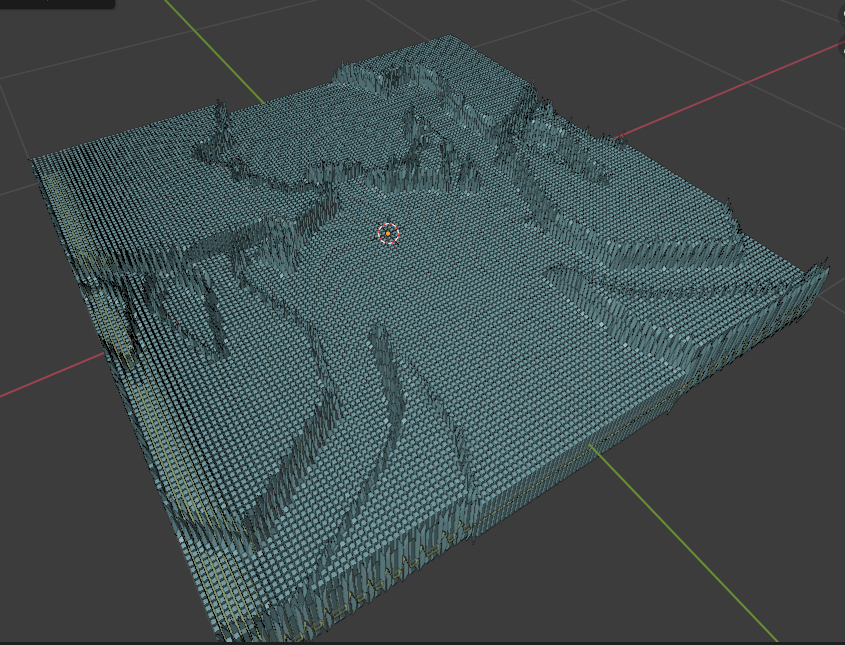
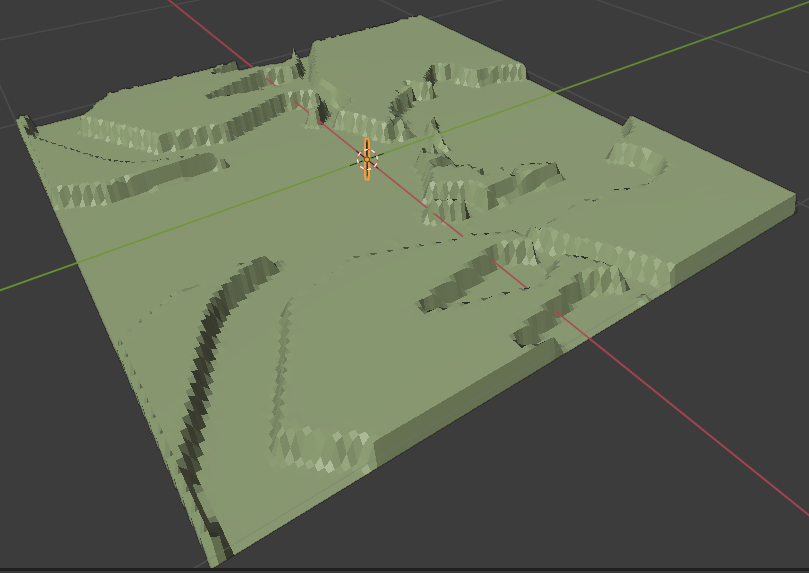
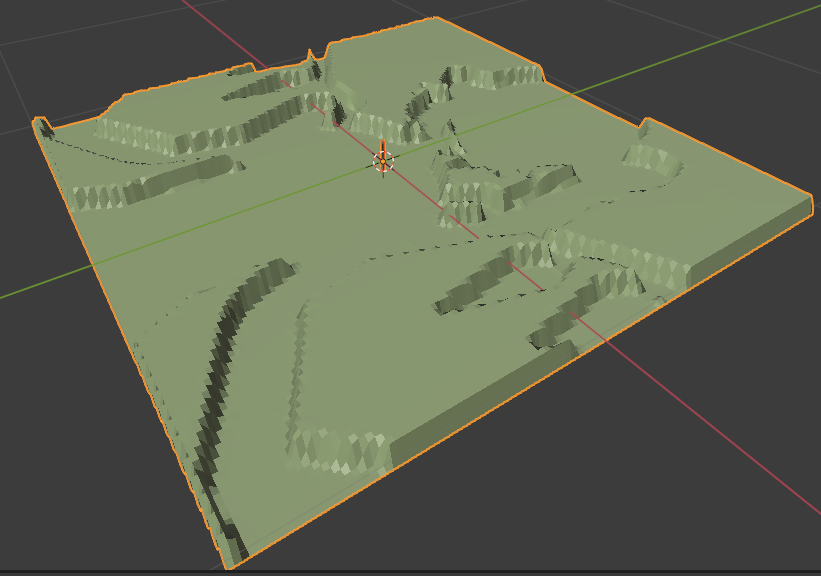
Yeah you can also instance to vertices, in the image i rendered i just set the plane to have a transparent shader so i didn't had to delete geometry but it works too.
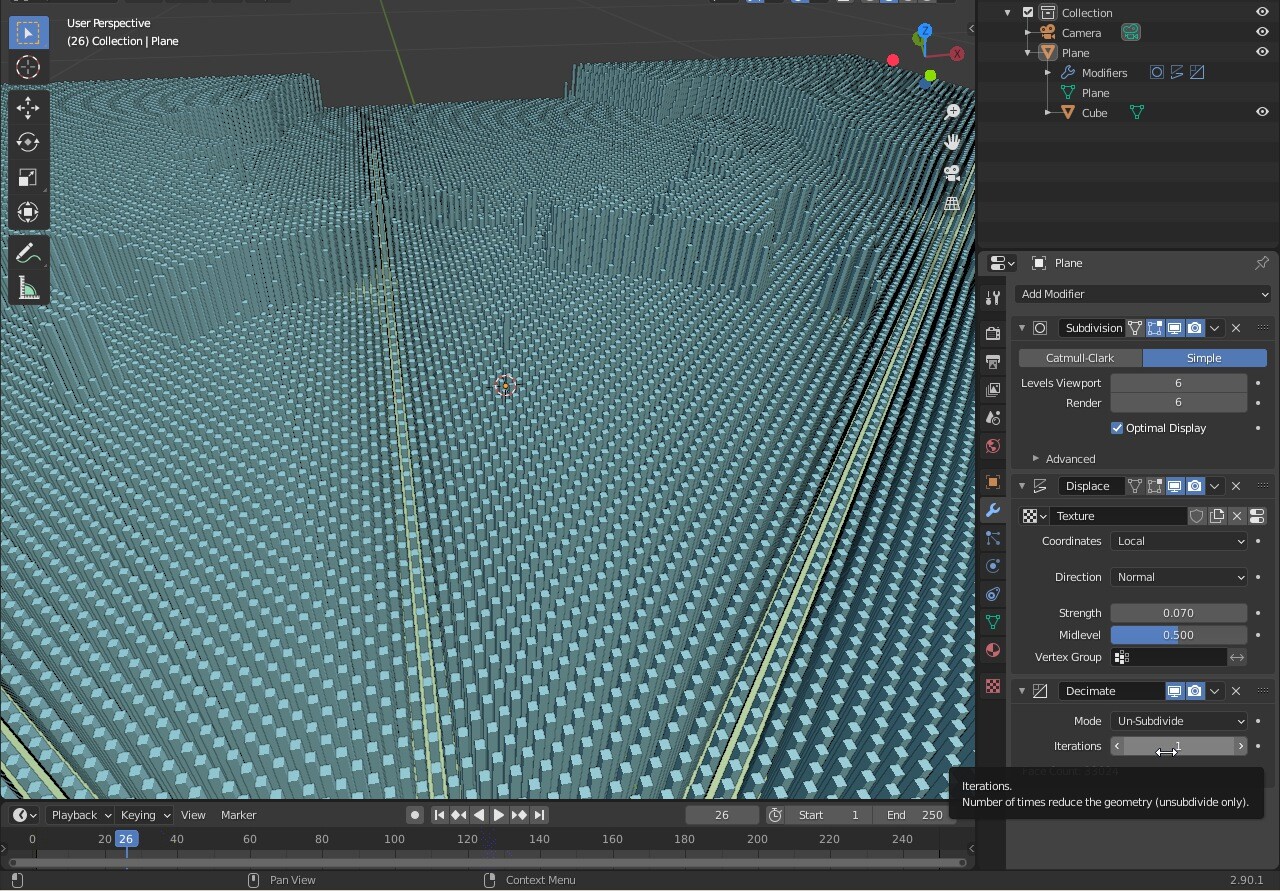
I set it to instance vertices too and added also a DECIMATE modifier to the plane after the other modifiers, and set it to Un-Subdivide 1 to have the pins on a checkered pattern instead of just straight.
@applejack @LukeAlmighty oh and also add some blur to it too maybe
@applejack @LukeAlmighty probably would be better to interpolate and/or increase the fps of the video before importing it.
@dwite39@pawoo.net @LukeAlmighty yeah probably, i would just need to record a video or something 
@LukeAlmighty 10.- if you choose an image sequence or a video, the plane will move accordingly of course
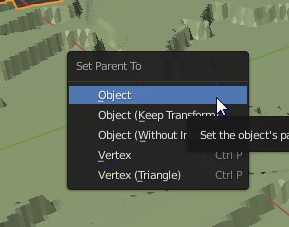
@LukeAlmighty 8.- select the pin AND while holding SHIFT select the plane too so you have both selected, the order is important here so select first the pin AND THEN the plane.
Press CONTROL+P and parent the pin to the plane
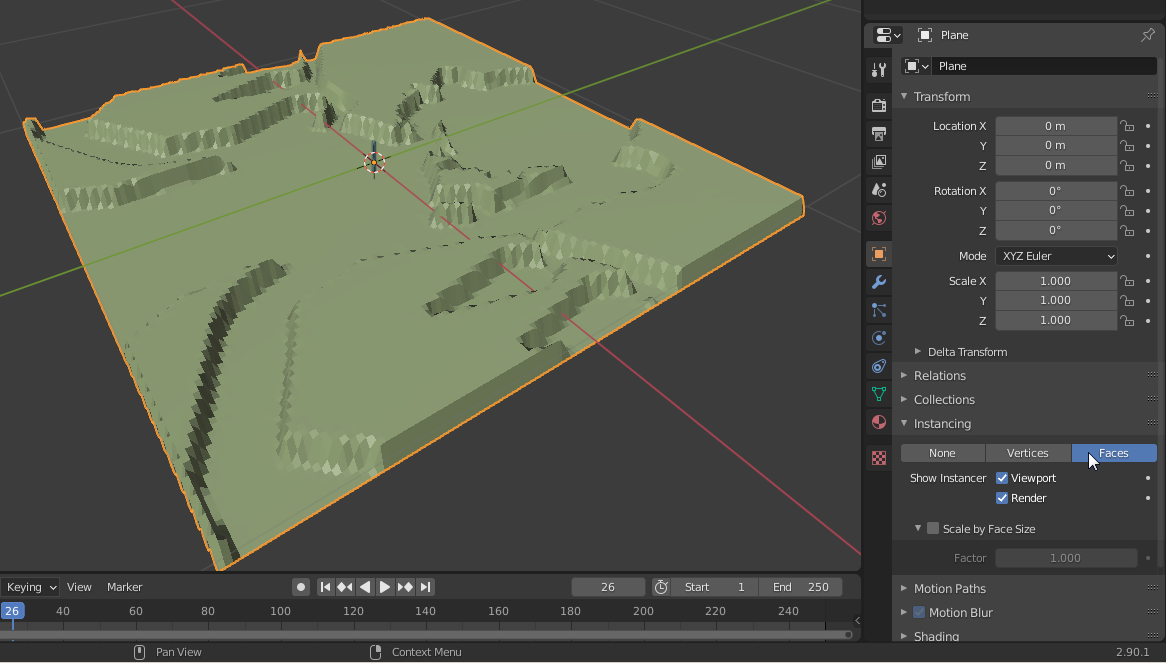
@LukeAlmighty 7.- Select the plane, go to the Object Properties (the yellow square) tab and under Instancing, set it to faces
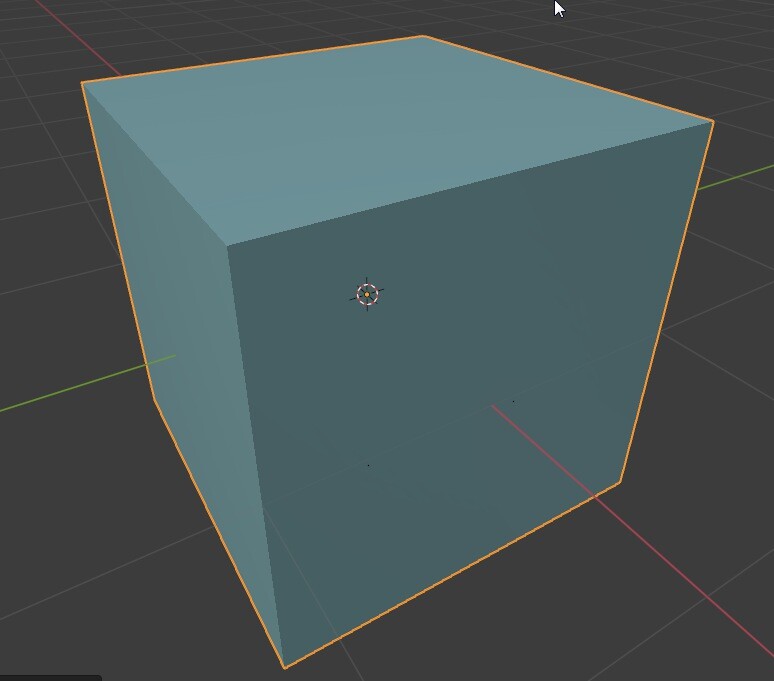
@LukeAlmighty 6.- Add a cube, and edit it's size to create the little pin
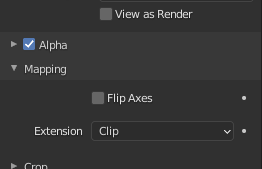
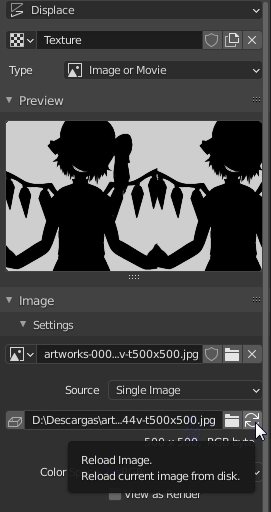
@LukeAlmighty 5.- under Mapping, i set Extension to CLIP so the image doesn't repeat.
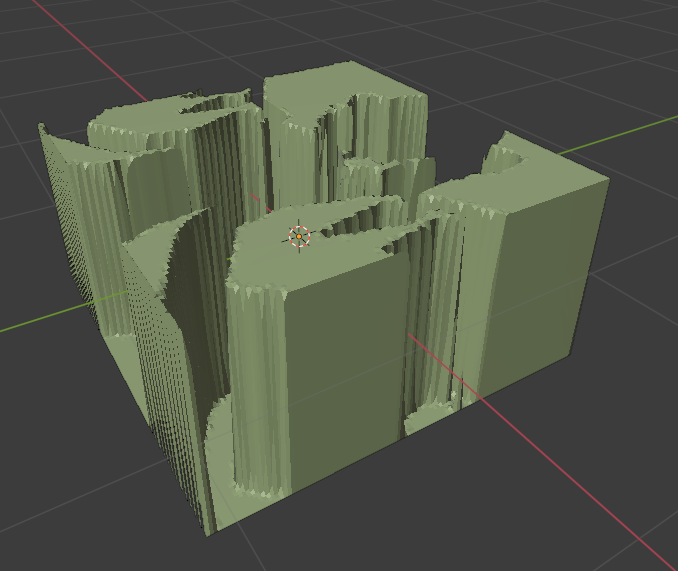
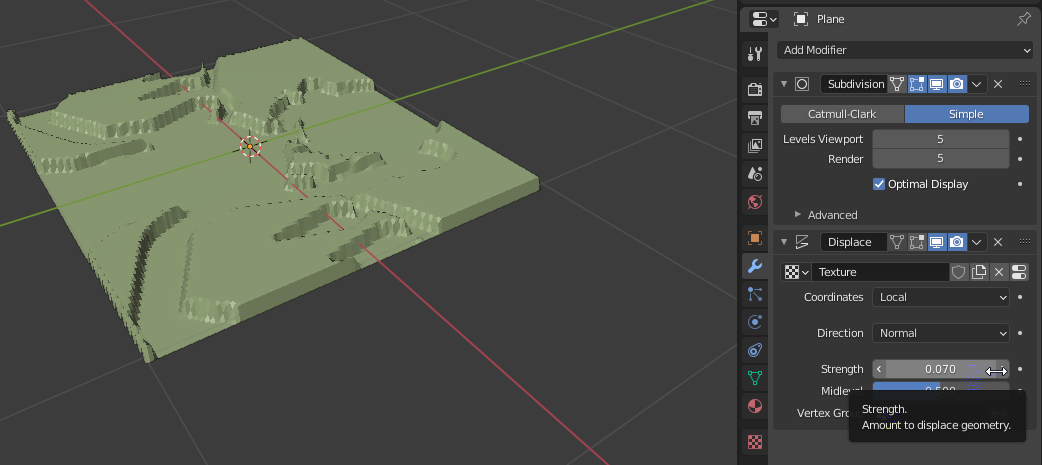
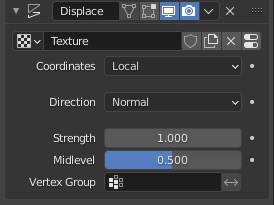
You wll then need to adjust the strenght of the displace modifier so it doesn't affect the plane that much
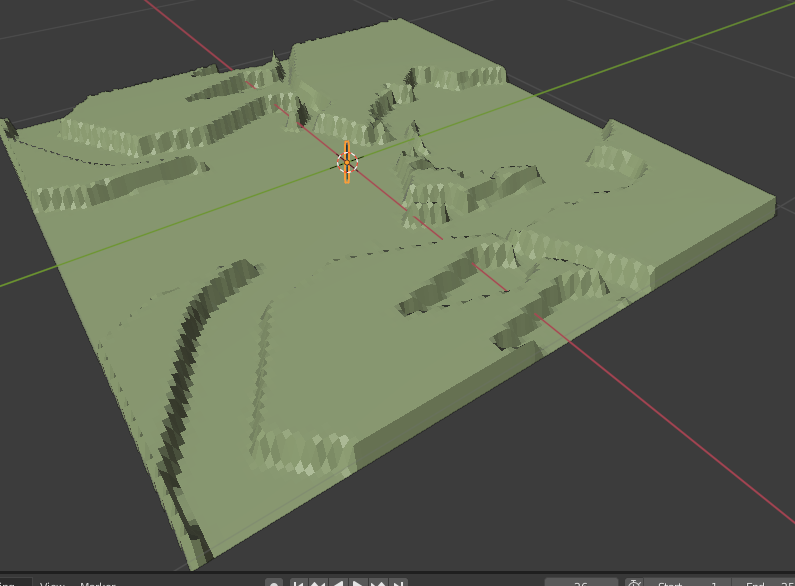
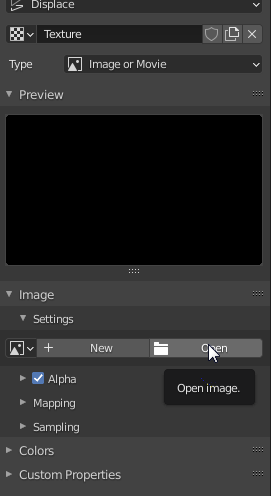
@LukeAlmighty 4.- in the texture settings, click on Open and choose the image
Joined Oct 2020
Hideki's choices: